
The list lives at supplymo.com/search. Everything you add stays saved on this device until you send it, so you can build it over a few visits.
Sign in first, if you like
You don't need an account. Your name and email in the last step are enough. Signing in keeps your list on any device, fills in your name and email for you, and puts the request in your account once it's sent.
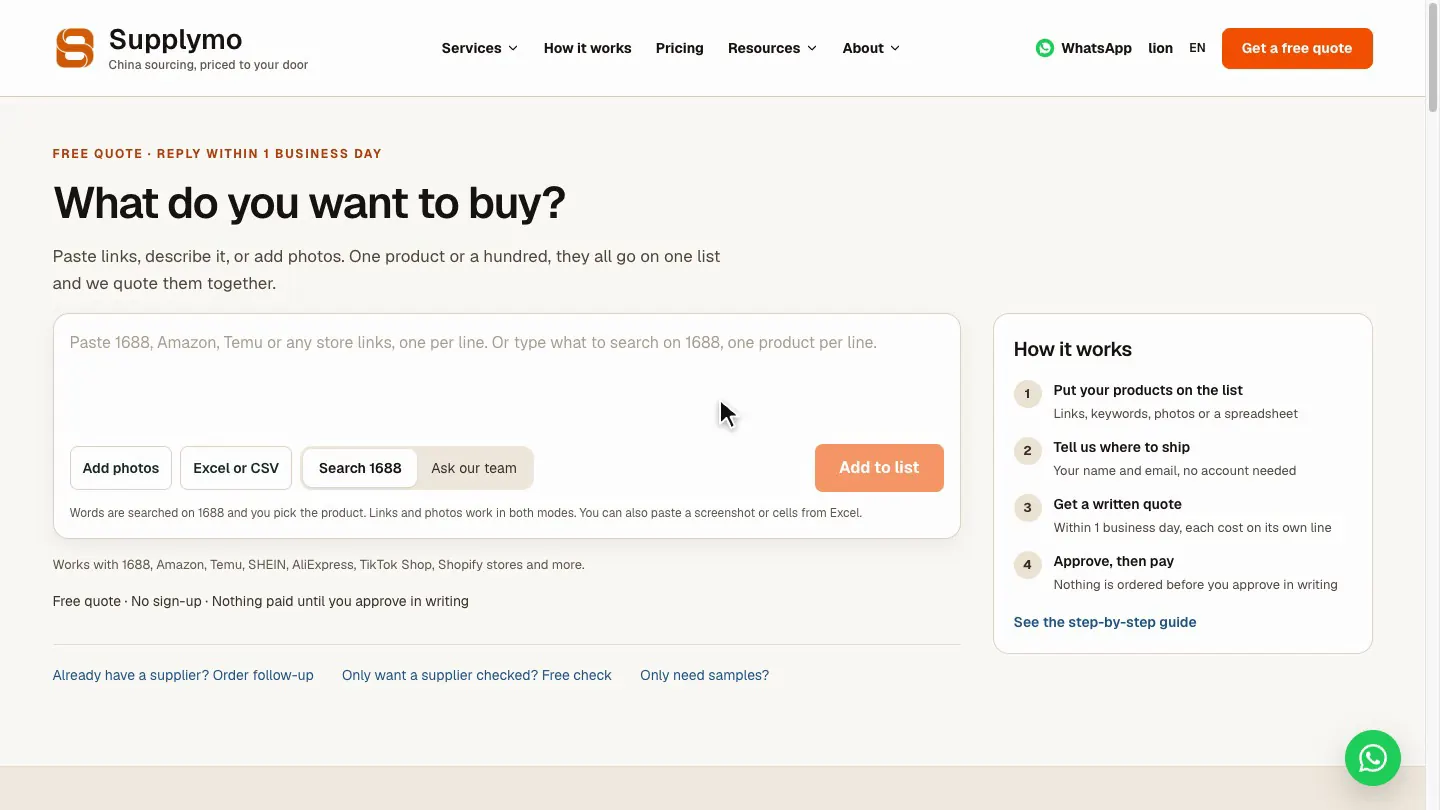
Search by keyword, then pick colors and sizes
- 1Keep Search 1688 on and type what you want, one product per line. Press Add to list.
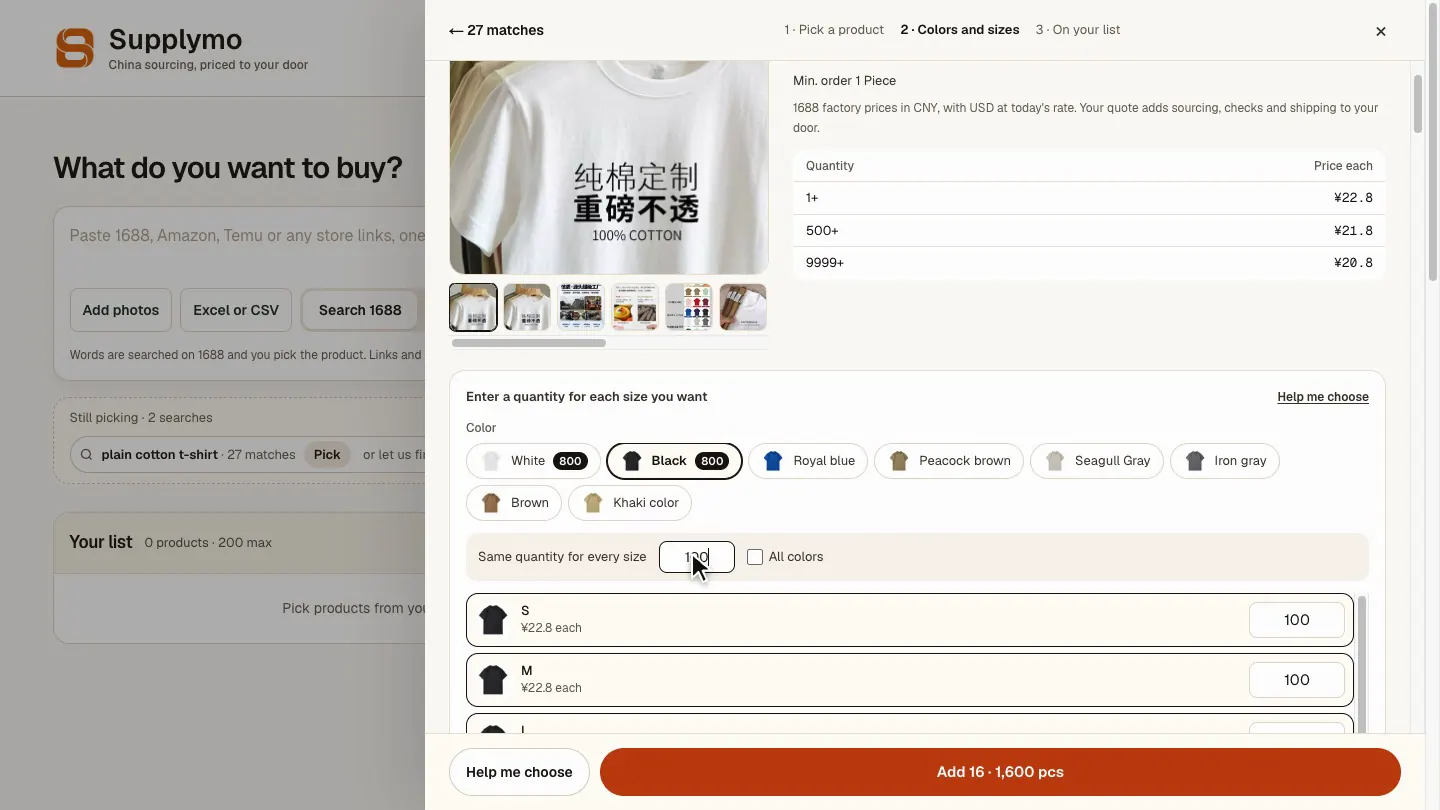
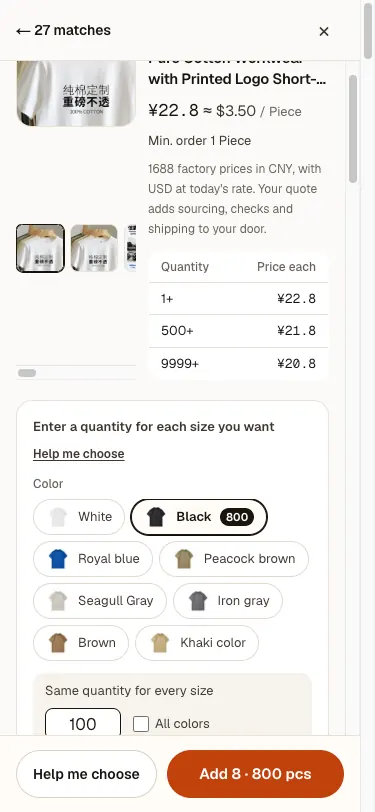
- 2The results open next to your list, or full screen on a phone. Tap a product to see its photos and price by quantity.
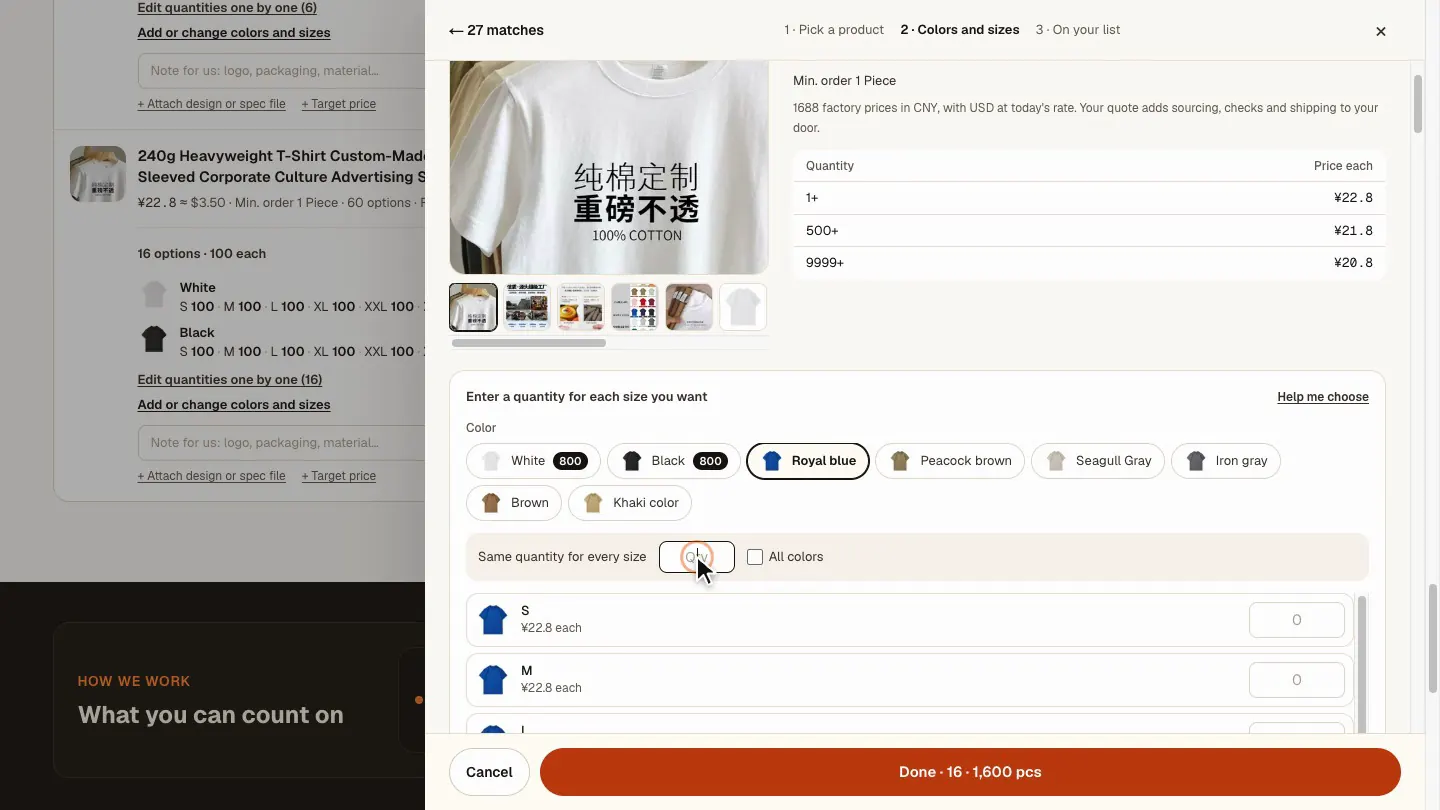
- 3Choose a color and type how many you want in each size. Same quantity for every size fills them all at once.
- 4Press Add at the bottom. A search you haven't picked from yet waits under Still picking.
Type in your own language
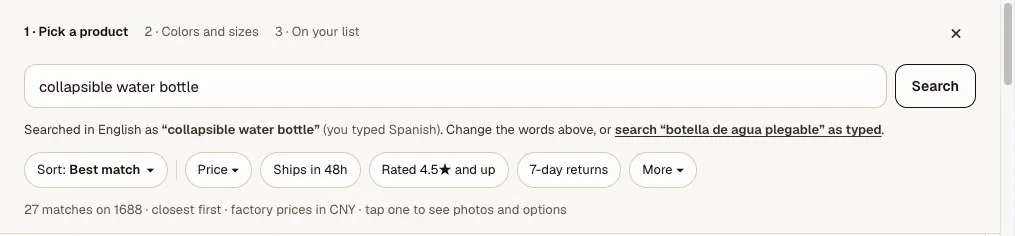
You can type in Spanish, French or another language. 1688 search reads English best, so we search in English and show you the words we used. Change them in the box, or press the link to search your words as typed. English and Chinese are searched as they are.
Search with a photo
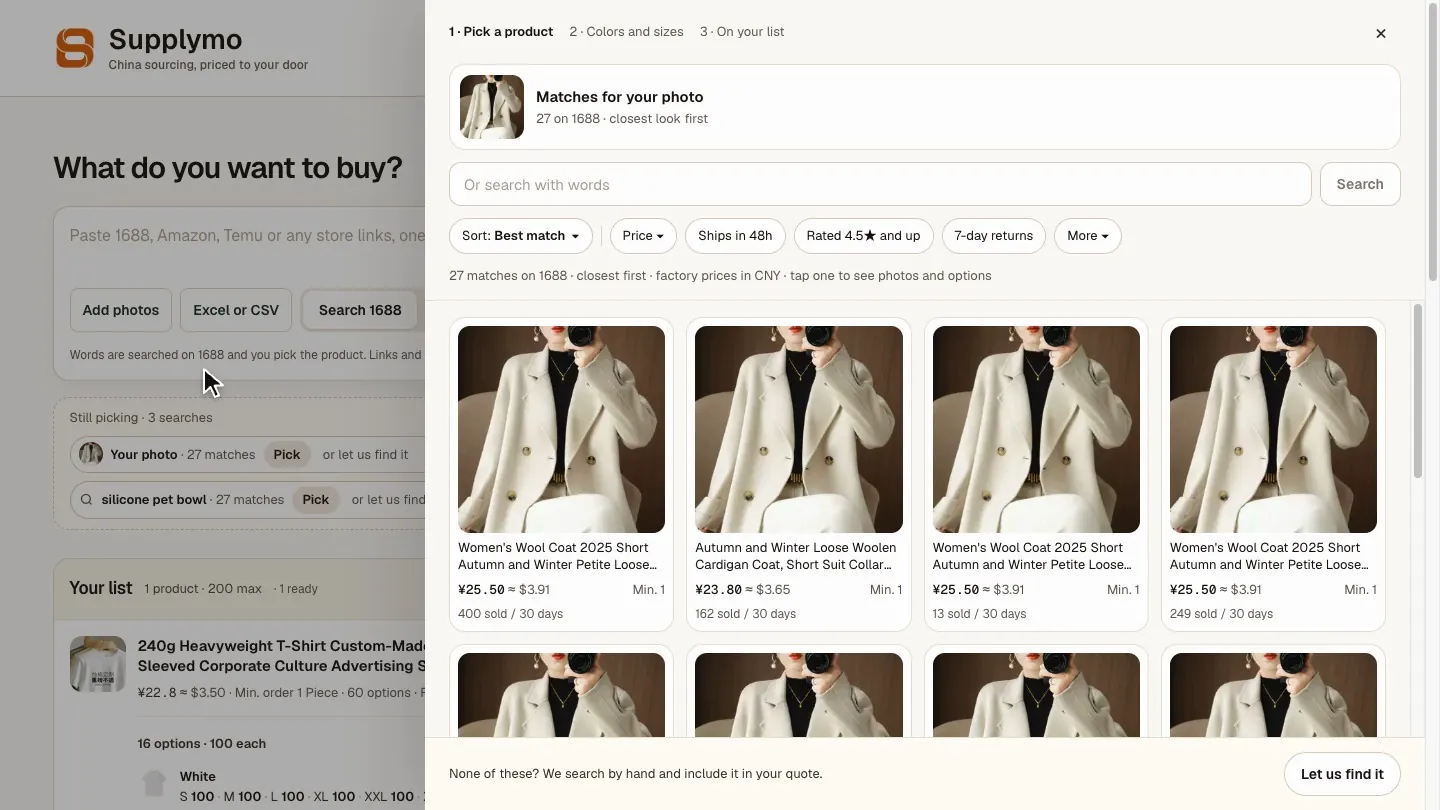
- 1Press Add photos and choose one or more pictures. A screenshot of the product is fine.
- 2You can also paste a copied image into the box with Ctrl+V or ⌘V, or drag it onto the box.
- 3JPG, PNG and WebP work. iPhone HEIC photos are turned into JPEGs before the search.
- 4Matches open with the closest look first. Pick one, or press Let us find it.
Paste a 1688 link
- 1Paste the product page address and press Add to list. Put each link on its own line.
- 2We read the listing, so the row shows the price, the seller's minimum and how many options it has.
- 3Press Choose color and size to set your quantities.
- 4Have a whole 1688 shop rather than one product? Paste the product links, or tap Tell us which products and write them down.
Paste an Amazon, Temu or other store link
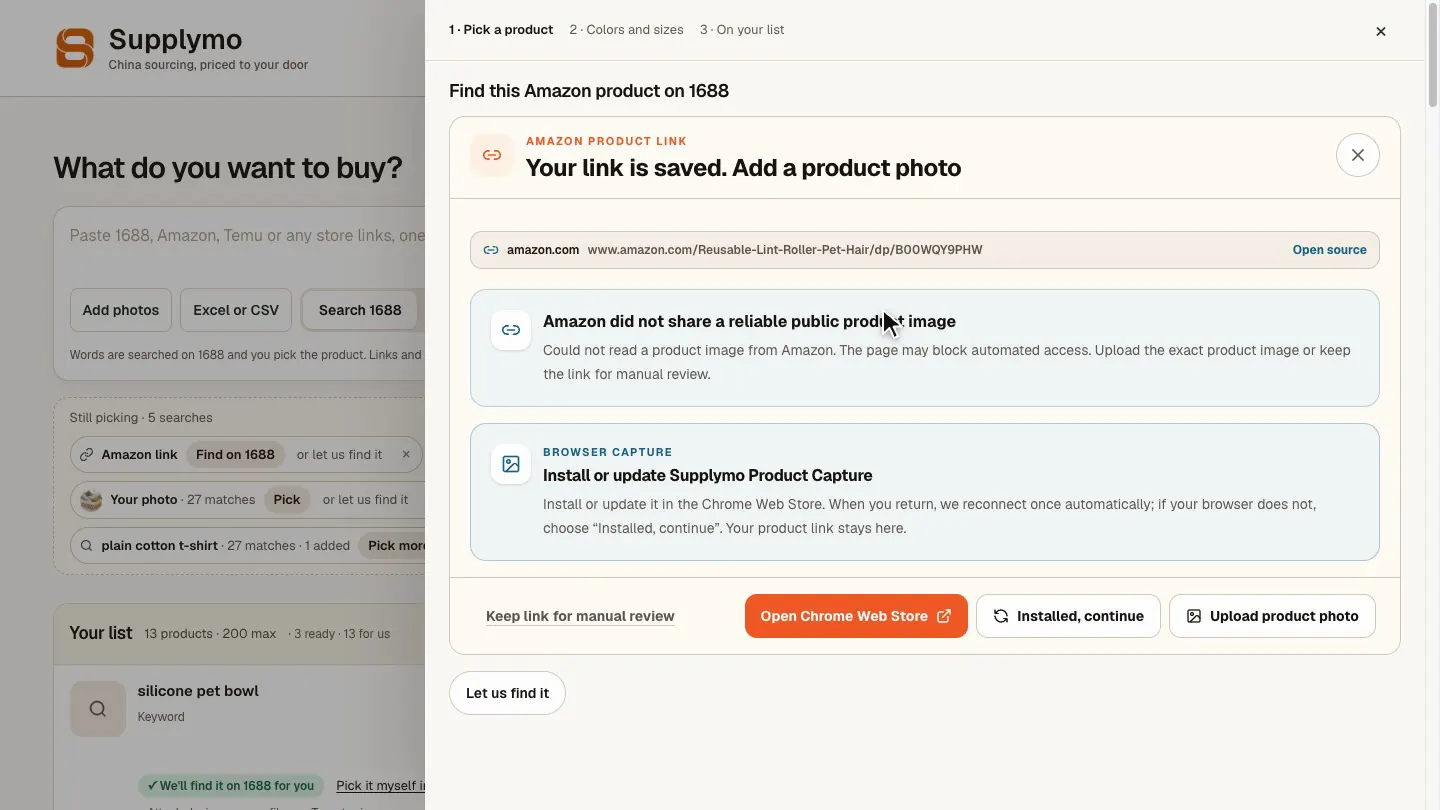
Links from Amazon, Temu, SHEIN, AliExpress and Shopify stores all work. We look for the same product on 1688 and show you the closest matches.
- 1Paste the link and press Add to list.
- 2Some stores don't let us read the product photo. The first time that happens, we ask you to add our Chrome extension, Supplymo Product Capture. Install it, come back and press Installed, continue.
- 3Rather not install anything? Press Upload product photo and add a screenshot of the product.
- 4If nothing on 1688 is close, press Let us find it. We search by hand and include it in your quote.
Paste a video link
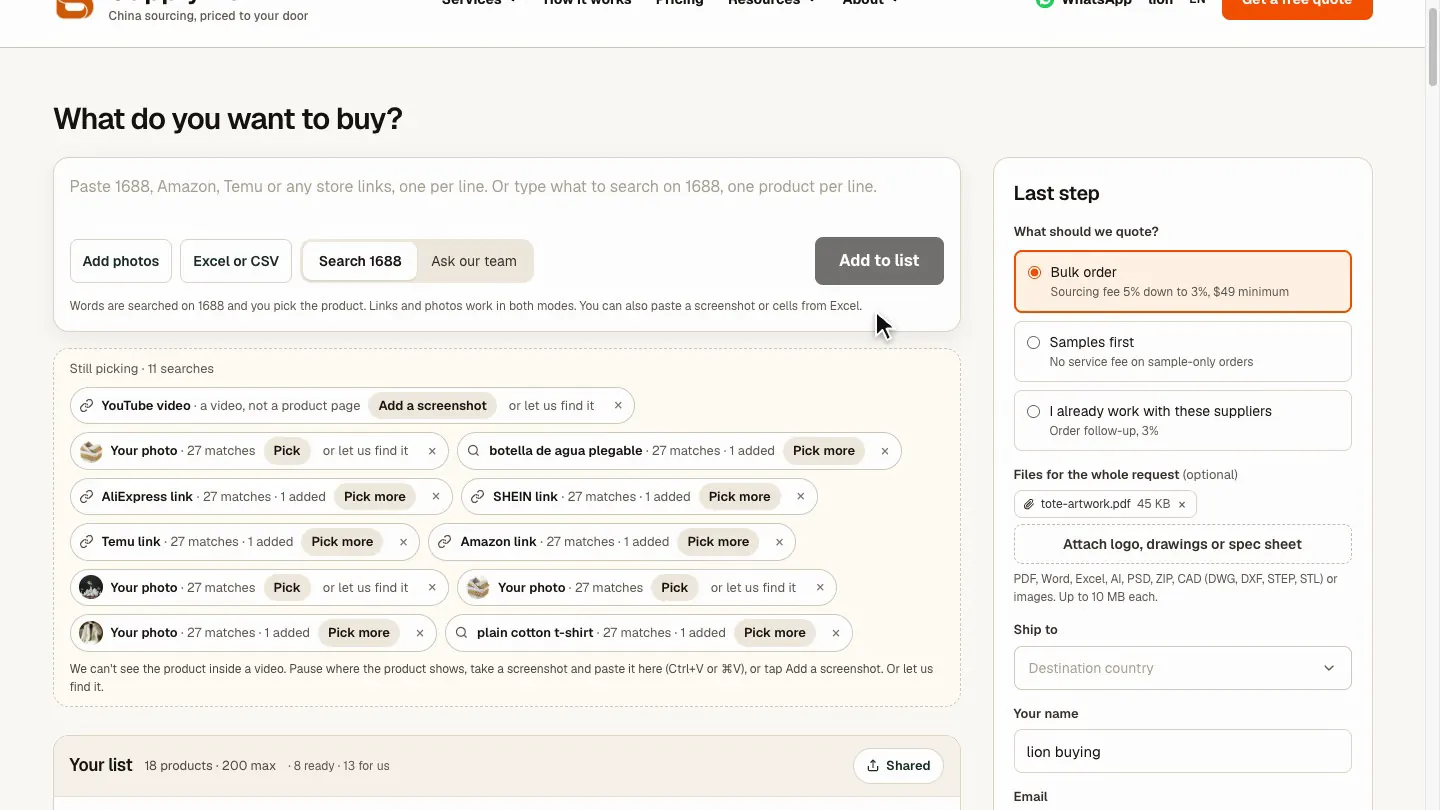
A TikTok, Instagram or YouTube link is a video, not a product page, so it waits on its own line under Still picking. We can't see the product inside a video. Pause where it shows, take a screenshot and press Add a screenshot. Or press let us find it and leave it to our team.
Add an Excel or CSV file
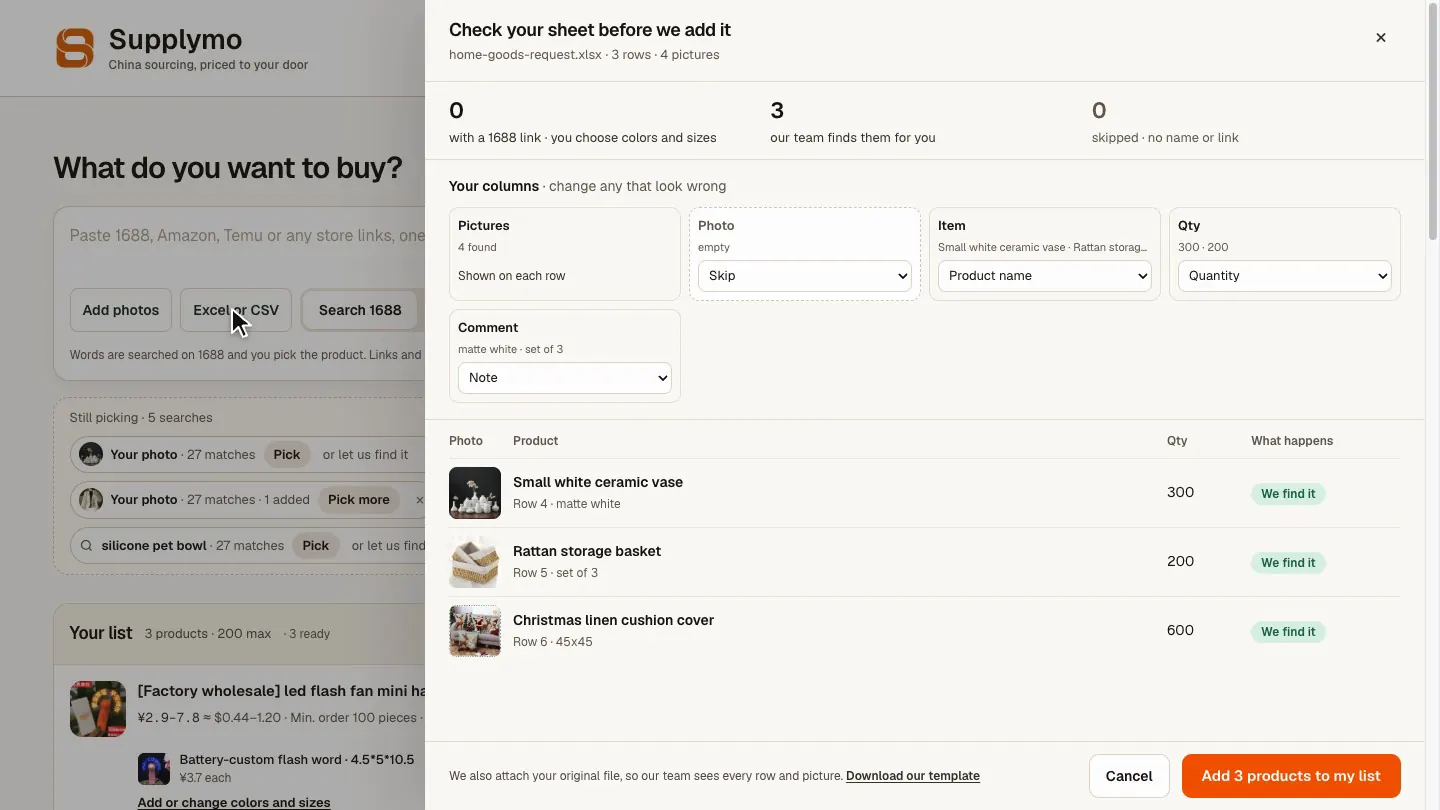
- 1Press Excel or CSV and choose your file. Dragging the file onto the box works too, and so does pasting cells you copied from Excel.
- 2Nothing is added yet. You see a preview first: check how each column was read and change any that look wrong.
- 3Rows with a 1688 link are yours to pick colors and sizes for. Rows with only a name go to our team, and empty rows are skipped.
- 4Press the Add button at the bottom. We attach your original file as well, so our team sees every row and picture.
Ask our team in your own words
- 1Switch to Ask our team under the box.
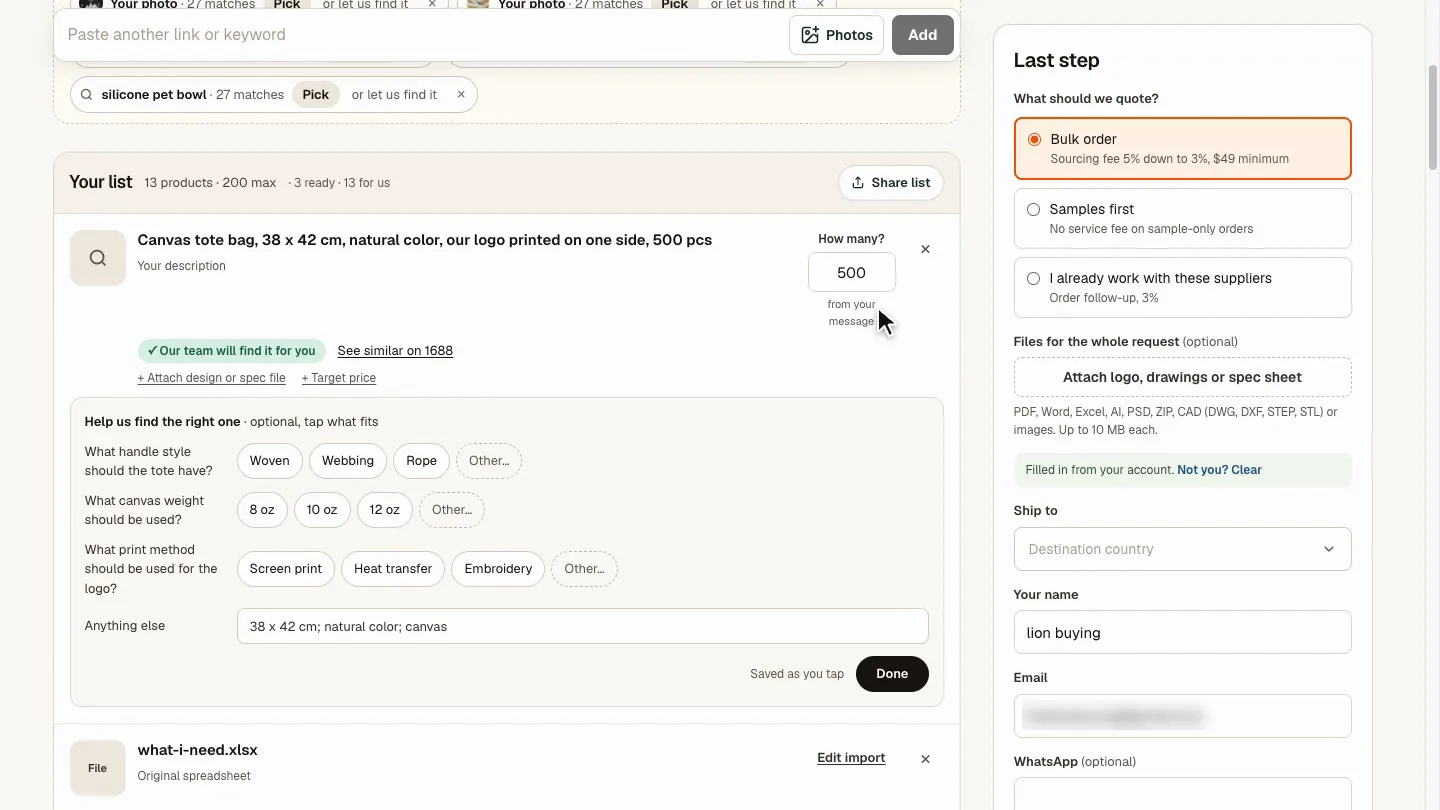
- 2Describe the product the way you'd tell a colleague. Size, material and a logo are worth mentioning if they matter.
- 3Your words go on the list as one request. We pull out details like the quantity, and Help us find the right one asks a few optional questions.
- 4Tap the answers that fit or skip them. Press Done to fold the questions away.
Add a target price or a design file to a row
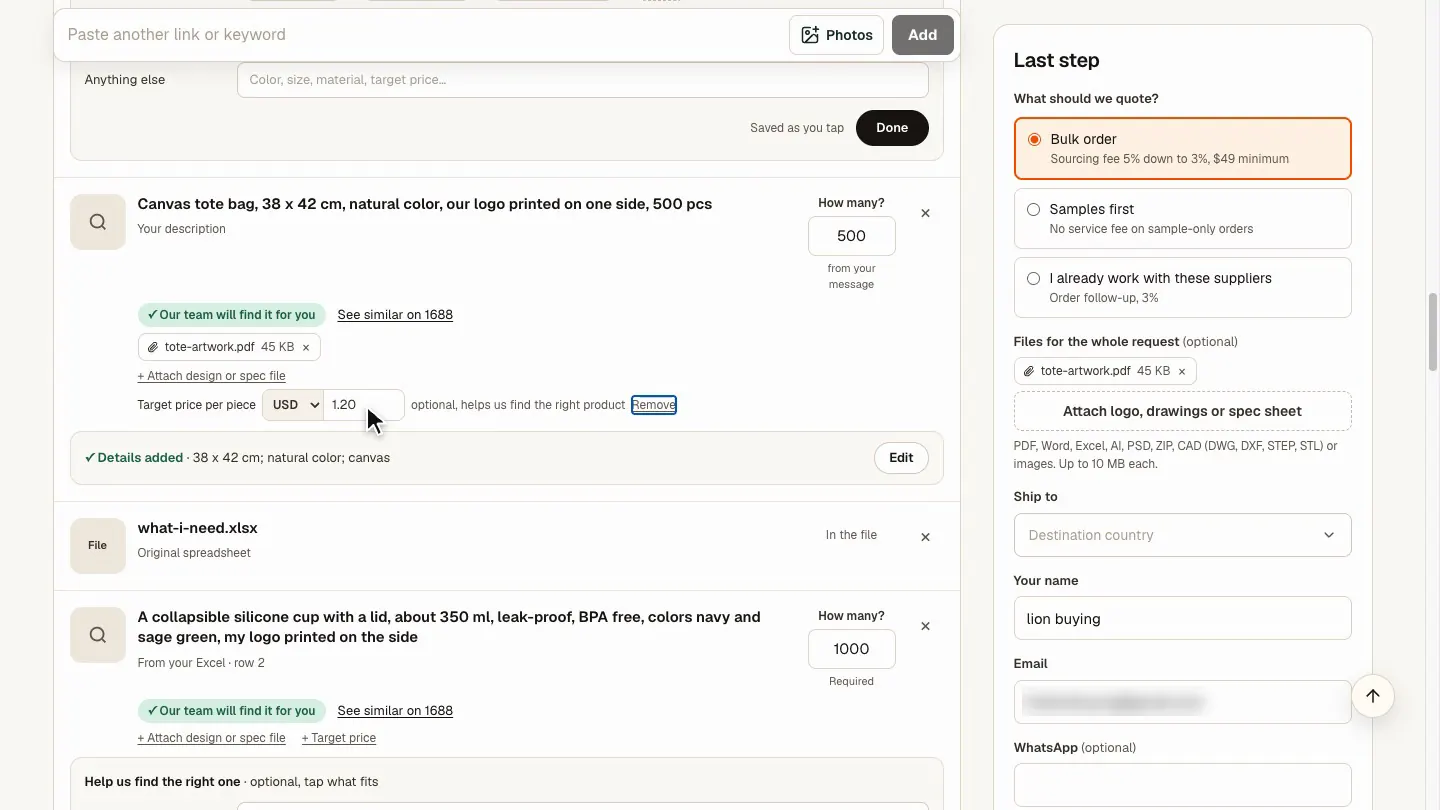
Each row has two small links under it. + Target price lets you say what you hope to pay per piece. It's optional and helps us find the right product. + Attach design or spec file adds artwork or a drawing to that one product.
Change your list
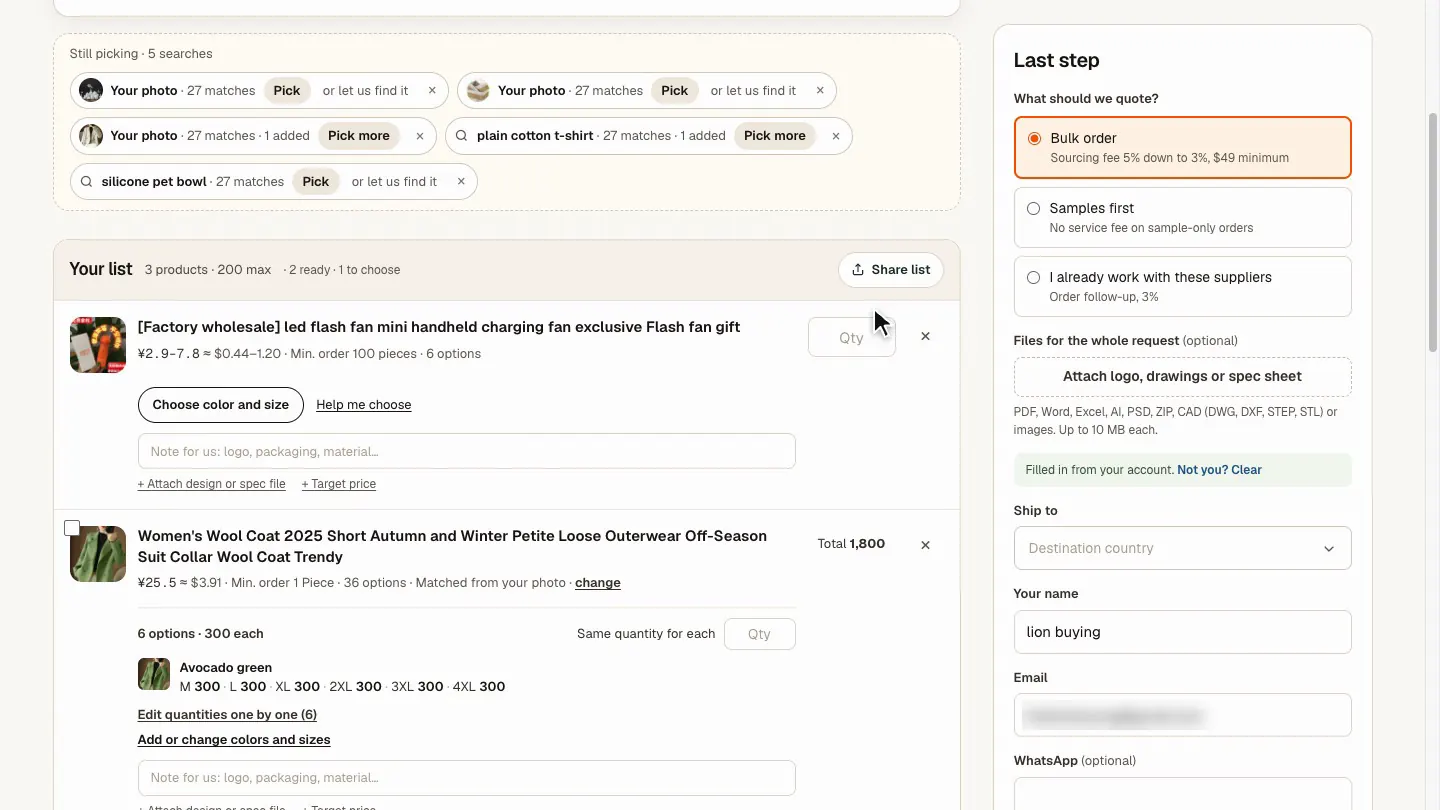
- 1Change a quantity right on the row. Same quantity for each sets every option of that product at once.
- 2Add or change colors and sizes opens the product again so you can pick more. Edit quantities one by one lists every option.
- 3Press × at the end of a row to remove it.
One list holds up to 200 products.
Attach files for the whole request, or share the list
Files for the whole request sits in the last step. Use it for a logo or a spec sheet that covers several products. Files can be up to 10 MB each.
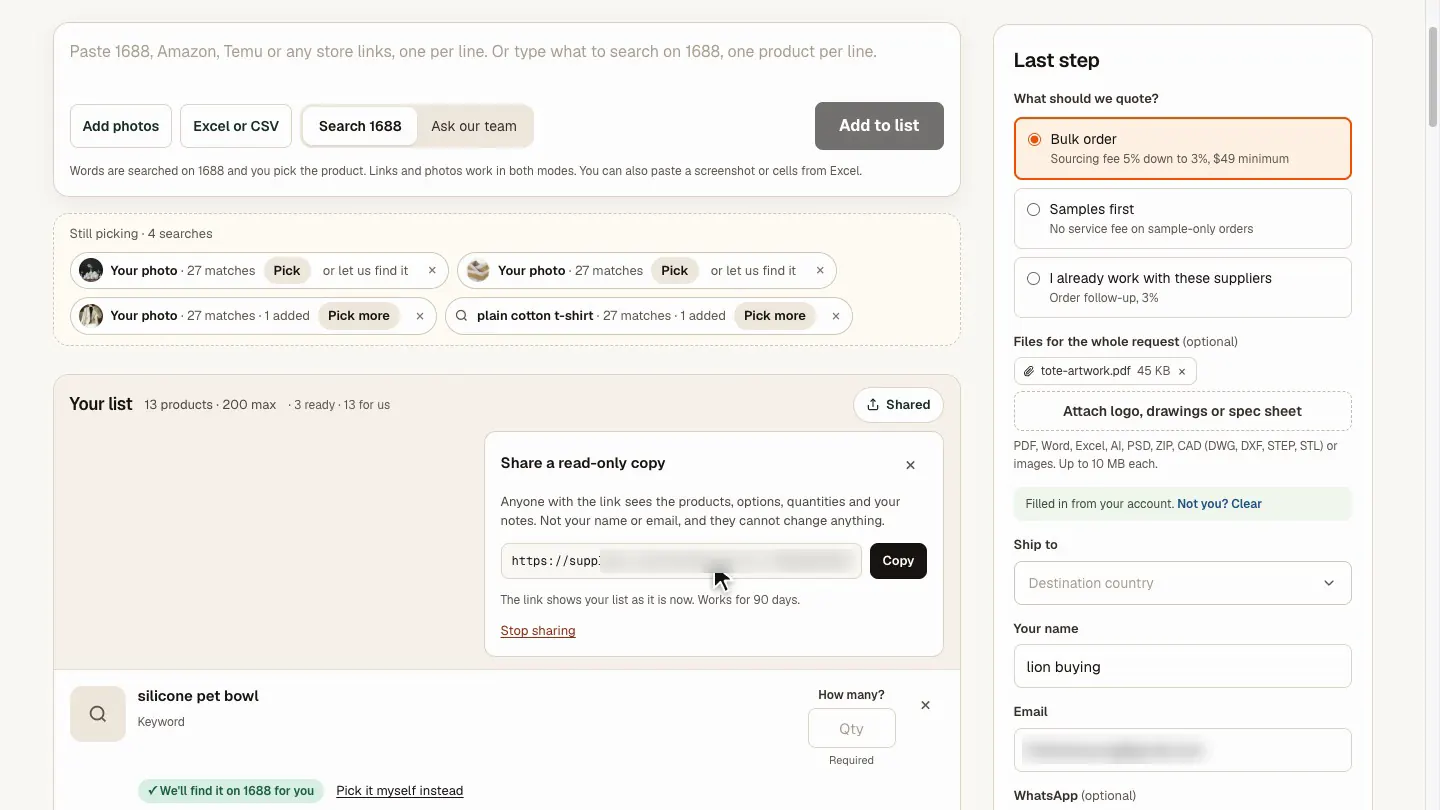
Share list makes a read-only link. Whoever opens it sees the products, options, quantities and your notes, but not your name or email, and they can't change anything. The link works for 90 days. Stop sharing turns it off.
Check before you send
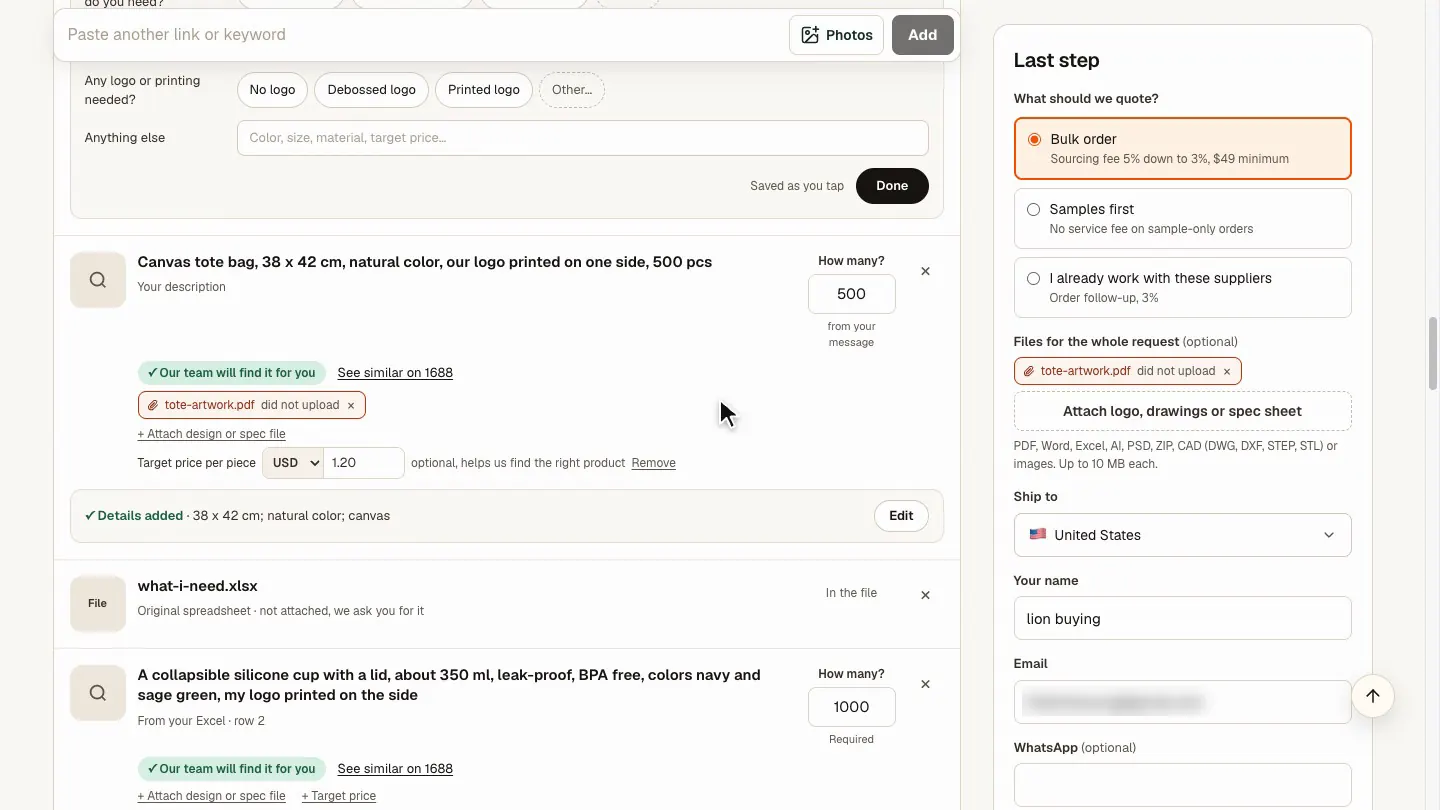
When you press send, any photo or file that didn't upload is sent again first. If one still can't reach us, it's marked did not upload and the page tells you. Press Show me to find it and add it again, or choose Send without them and we'll ask you for it.
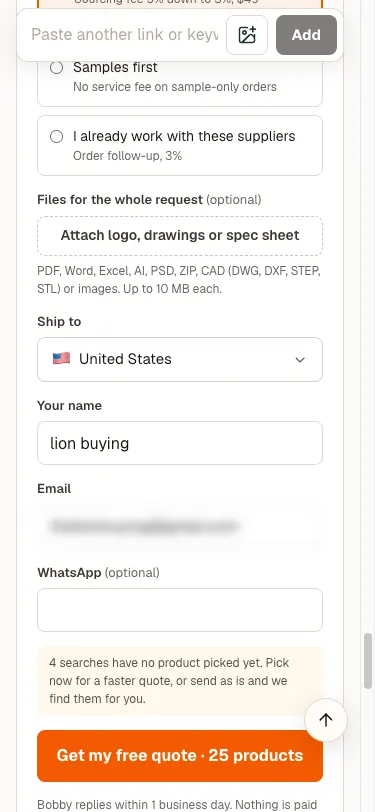
A row that still needs a quantity says Required, and the button at the bottom tells you how many are left.
Choose where we ship and send it
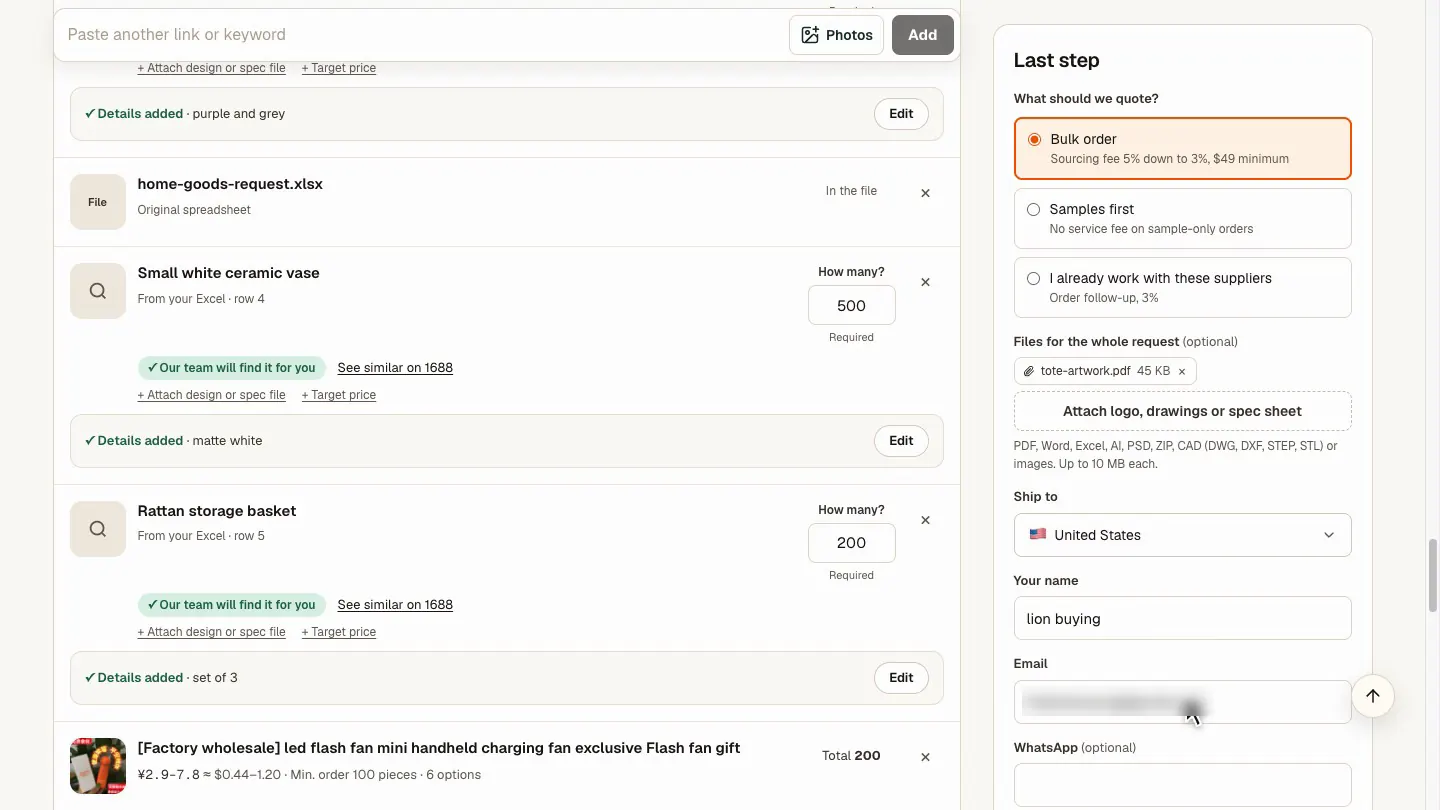
- 1Pick what we should quote: Bulk order, Samples first, or I already work with these suppliers.
- 2Choose the country under Ship to, then add your name and email. WhatsApp is optional.
- 3Press Get my free quote. You don't need an account to send it.
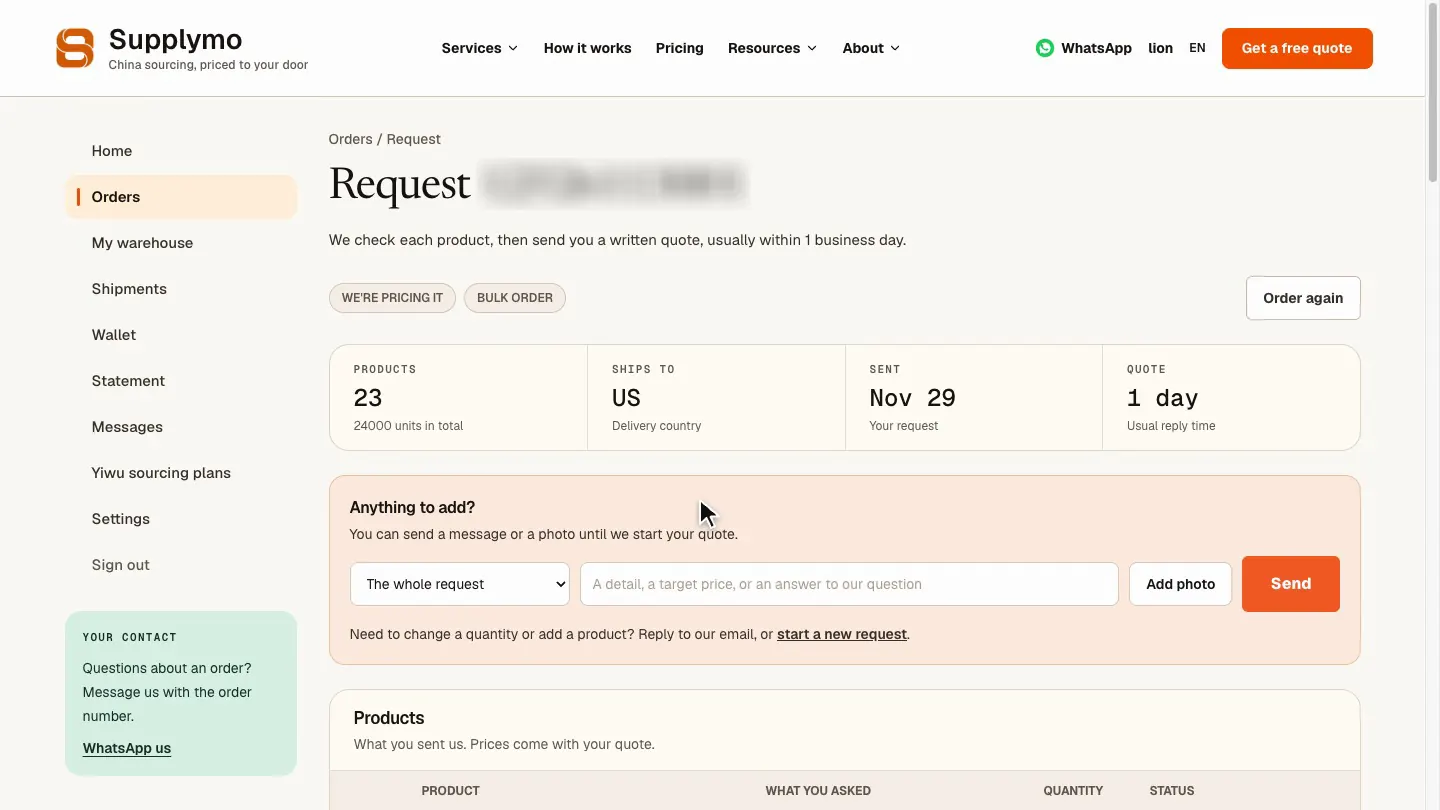
- 4You get a reference number and a tracking link right away. The written quote follows within 1 business day, and nothing is ordered until you approve it.
Follow up in your account, or order again
Signed in with the same email? The request shows up under Orders in your account. Until we start your quote, you can still send us a message or a photo from the request page.
Order again puts the same products, options and quantities back on your request list. Change what you need and send it as a new request. Nothing is ordered or quoted until you do.
Related questions
Do I need an account?
No. Your name and email in the last step are enough. Signing in is optional and keeps your list on any device.
What is the difference between Search 1688 and Ask our team?
With Search 1688, each line you type becomes a 1688 search and you pick the products yourself. With Ask our team, your words become one request and our team looks for it. Links and photos work the same either way.
How many products can one list hold?
Up to 200 products, plus 30 photos or files of up to 10 MB each. For an Excel or CSV file, you see the rows first and choose which ones to add.
My product is on Amazon, not 1688. Does that work?
Yes. Paste the link and we look for the same product on 1688. If none of the matches looks right, press Let us find it.
Do I have to pick colors and sizes now?
No. Leave the product as it is and write what you need in its note. If something is unclear we ask before we quote.
What if my quantity is under the seller's minimum?
The row tells you the seller's minimum. Change the quantity, or send it as it is and ask about it in the note.
What happens after I send it?
You get a reference number and a tracking link that works without signing in. Within 1 business day we send a written quote with each cost on its own line. Nothing is ordered until you approve it in writing.
Still have a question?